
Learn Reports
Guided Content Progress Reports
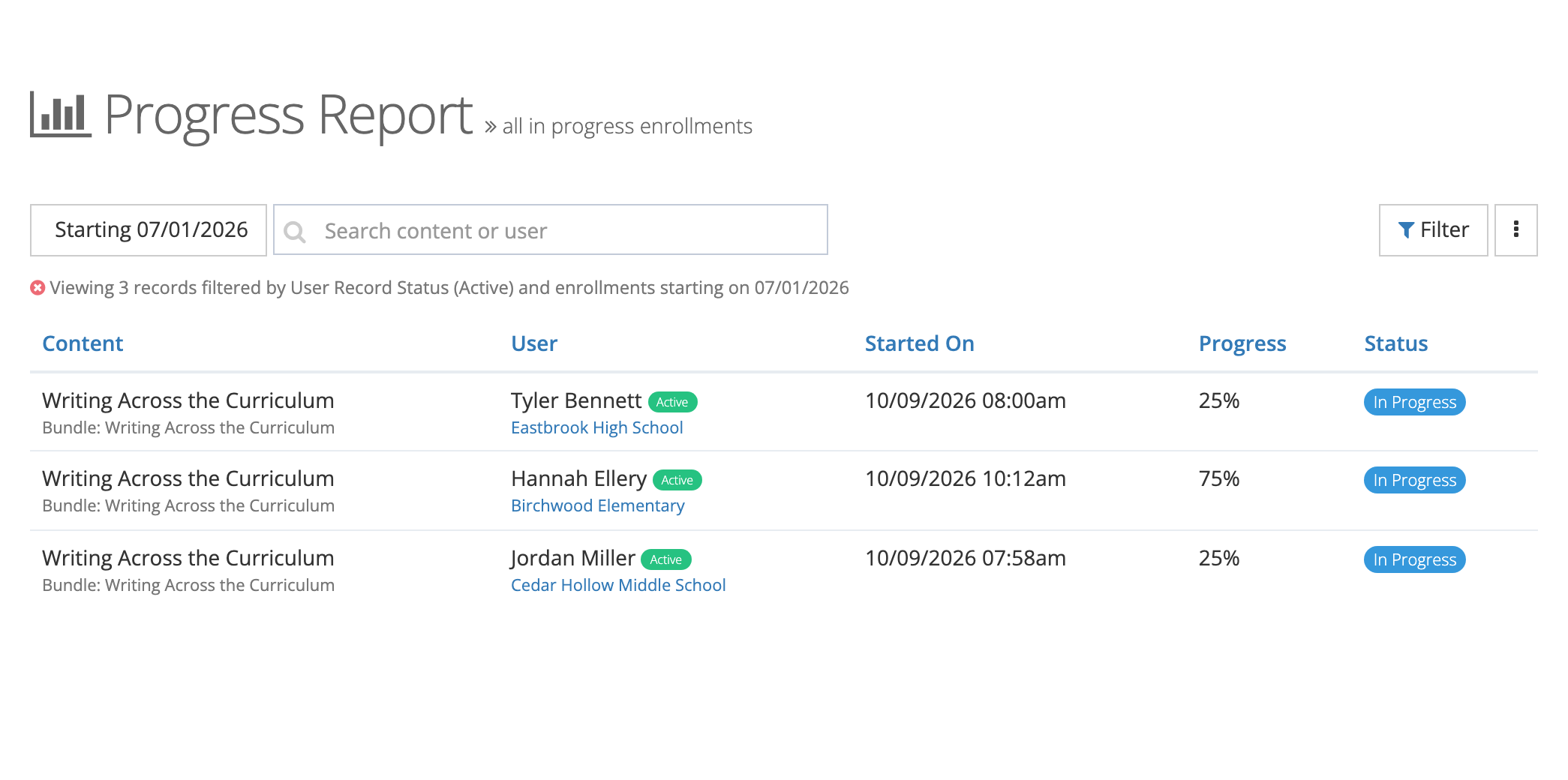
Track learner progress through courses, learning paths, and other guided content.
Track learner progress through courses, learning paths, and guided content to monitor professional development outcomes and identify learners who need additional support.
Role Requirements: System Administrator, Organization Administrator, or Reporter role
Accessing Progress Reports
Section titled “Accessing Progress Reports”- Navigate to Reports from the main menu
- Select Learn Reports from the available categories
- Choose Guided Content Progress from the report options
The system displays progress data for all guided content enrollments within your organization hierarchy.
Understanding Progress Metrics
Section titled “Understanding Progress Metrics”Progress Status Categories
Section titled “Progress Status Categories”The status shown for an enrollment depends on whether the content tracks a score.
For score-tracked content (such as assessments):
| Status | Description |
|---|---|
| Not Started | Enrolled but hasn’t begun content |
| In Progress | Actively working through content |
| Passed | Completed and met the passing score |
| Failed | Completed but did not meet the passing score |
| Complete | Completed; content does not track a score |
For non-score-tracked content:
| Status | Description |
|---|---|
| Not Complete | Not yet finished |
| Complete | Successfully finished all requirements |
Progress Calculations
Section titled “Progress Calculations”Progress percentages reflect chapter and section completion within a piece of guided content:
- Courses: Completion of chapters and their sections, including any required assessments
- Assessments: Attempt status and scores against the passing score threshold
- Learning Paths: Each enrolled item’s completion rolls up to overall bundle progress
Progress reaches 100% when all active chapters are fully complete. For content with required exams, all required exams must also be finished before the enrollment is marked complete.
Attempts
Section titled “Attempts”Each time a learner completes all content requirements, the attempt count increments. Learners may retake content if configured to allow it.
Final Score
Section titled “Final Score”For score-tracked content, the final score is the average of all required exam scores. The passing score threshold determines whether the result is Passed or Failed.
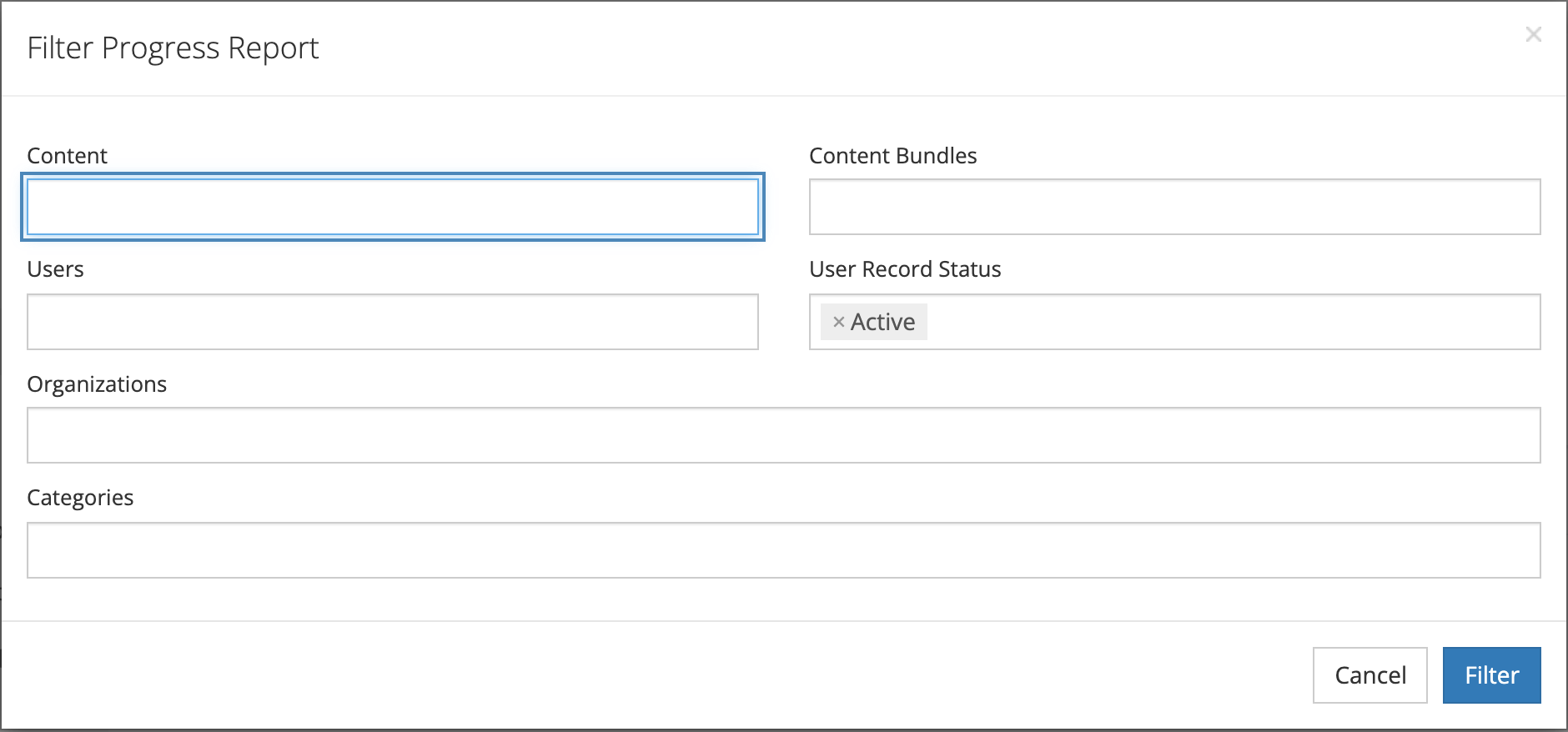
Filtering Progress Data
Section titled “Filtering Progress Data”By Organization
Section titled “By Organization”- Click the Organization filter dropdown
- Select one or more organizations from your hierarchy
- Click Apply to update the report
This filters results to show only learners from selected organizations.
By Content Type
Section titled “By Content Type”Filter by specific guided content categories:
- Select Content Type filter
- Choose from available options:
- Courses
- Assessments
- Videos
- Learning Paths
- Content Libraries
- Apply the filter to focus on specific content types
By Progress Status
Section titled “By Progress Status”Use the status filter to show enrollments matching a particular state. Available statuses reflect whether content tracks a score — see the status categories above.
By Date Range
Section titled “By Date Range”Filter enrollments by start date, completion date, or assignment date:
- Click Date Range filter
- Select start and end dates
- Choose which date field to filter by
- Apply the filter
Report Columns
Section titled “Report Columns”Learner Information
Section titled “Learner Information”- Name: Learner’s full name
- Organization: Learner’s assigned organization
- Email: Contact information
Content Details
Section titled “Content Details”- Content Name: Title of the course, assessment, or learning path
- Content Type: Category (Course, Assessment, Video, etc.)
- Required: Whether the content is mandatory
- Due Date: Completion deadline (if assigned)
Progress Tracking
Section titled “Progress Tracking”- Progress: Completion percentage (0–100%)
- Status: Current enrollment status (see status categories above)
- Started: Date enrollment began
- Last Activity: Most recent access date
- Completed: Completion date (if finished)
- Final Score: Percentage score for score-tracked content (shown only when complete)
- Attempts: Number of times the learner has completed all requirements
Sorting and Searching
Section titled “Sorting and Searching”Search Functionality
Section titled “Search Functionality”Use the search bar to find specific:
- Learner names
- Content titles
- Organizations
The search looks across all visible columns.
Column Sorting
Section titled “Column Sorting”Click column headers to sort by:
- Name: Alphabetical by learner name
- Progress: Percentage complete (ascending/descending)
- Started: Enrollment date
- Last Activity: Most recent access
- Completed: Completion date
Working with Progress Data
Section titled “Working with Progress Data”Identifying At-Risk Learners
Section titled “Identifying At-Risk Learners”Look for patterns indicating learners who may need support:
- High progress percentage but no recent activity
- Multiple attempts on assessments without a Passed status
- Required content with approaching due dates
- Long gaps between start date and last activity
Monitoring Required Training
Section titled “Monitoring Required Training”Use filters to focus on compliance-critical content:
- Apply Required status filter
- Sort by Due Date to prioritize urgent items
- Check Progress and Status columns for completion
Score-Tracked vs. Non-Score-Tracked Content
Section titled “Score-Tracked vs. Non-Score-Tracked Content”Not all content types track a score. For content where score tracking is disabled, the system marks the enrollment Complete as soon as all sections are finished — no passing score applies. Use the Content Type filter to separate assessments (which always track scores) from other content types.
Exporting Progress Reports
Section titled “Exporting Progress Reports”CSV Export
Section titled “CSV Export”- Apply desired filters to narrow the dataset
- Click Export button
- Select CSV format
- Choose export options (all data or current view)
- The system generates a downloadable file
Export Contents
Section titled “Export Contents”The exported file includes all visible columns plus additional data:
- User ID and organization hierarchy
- Detailed timestamps
- Assignment metadata
- Progress tracking history
Progress Report Use Cases
Section titled “Progress Report Use Cases”Professional Development Planning
Section titled “Professional Development Planning”- Identify skill gaps across organizations
- Track progress toward certification requirements
- Plan additional training based on completion patterns
Compliance Monitoring
Section titled “Compliance Monitoring”- Ensure required training completion before deadlines
- Generate compliance reports for administrators
- Track renewal requirements and schedules
Performance Analysis
Section titled “Performance Analysis”- Compare completion rates across different content types
- Analyze time-to-completion patterns
- Identify high-performing and struggling learners
Refreshing Report Data
Section titled “Refreshing Report Data”Progress reports update in real-time as learners access content. The Last Updated timestamp shows when data was last refreshed.
For the most current information, refresh your browser or re-apply filters to reload the dataset.