

Assessments
Managing Proctored Sessions
Schedule a proctored session, enroll test takers, start and end the session, allow retakes, and certify results.
A proctored session is a scheduled testing window that you supervise, for example a Saturday morning certification exam in the district office computer lab. You create the session, enroll test takers or give them a code, start it when the room is ready, and end it when everyone is done.
Who can do this: staff with the proctor role (shown as Proctor Administrator when roles are assigned) who have completed the proctor acknowledgment. If you have not, see Getting Started as a Proctor first. System administrators can also view the district’s sessions and schedule one for a proctor from the Proctored Sessions tile on the Proctoring Dashboard, but only the session’s proctor can start it, end it, allow a retake, or certify a result.
Create a session
Section titled “Create a session”- In the My Home sidebar, under Dashboards, select Proctoring Dashboard.
- On the My Proctored Sessions tile, select View.
- Select New.
- In the New Session box, fill in:
- Proctor: you. The list contains only your own name.
- Available On: the date and start time. The date cannot be in the past.
- Duration: 1 to 24 hours.
- Select Save.
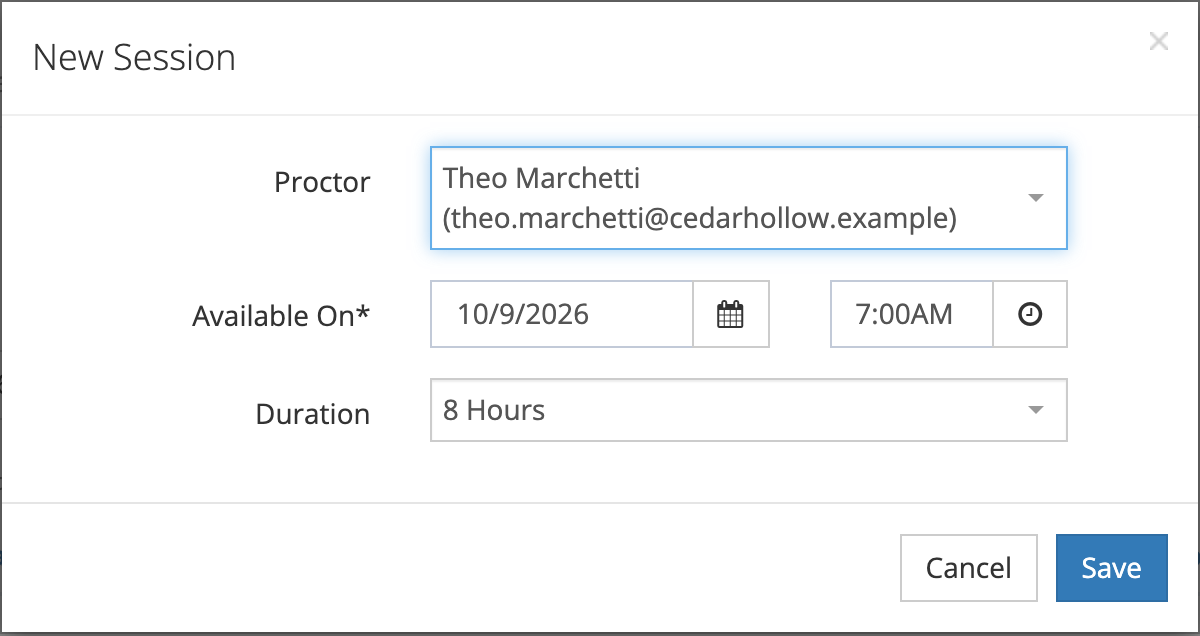
A session is not tied to one assessment. Anyone enrolled can take any proctored content assigned to them during the window.
You cannot schedule two of your sessions at overlapping times. If you try, the box shows that you are already proctoring another session for that time range. A test taker also cannot be enrolled in two sessions that overlap.
The My Proctored Sessions list shows each session’s Status, Available On time and length, and Enroll Code. Use the date button and Filter (by status) to find older sessions. The row menu has Edit and Delete. You can edit a session only while it is Pending or Started, and delete it only before anyone has opened an assessment in it.
Session settings your provider controls
Section titled “Session settings your provider controls”Four behaviors are set for your district by your provider and apply to every session. You cannot change them per session.
- Enrollment codes: when on, each session gets a four-character Entry Code that test takers type to join.
- Auto start: when on, a pending session starts on its own at its start time.
- Auto complete: when on, a session ends on its own after its time runs out. When off, an unfinished session is marked Expired about an hour after its end time.
- Auto certify: when on, a test taker who passes is certified right away. When off, you certify each result.
Open the session page
Section titled “Open the session page”In My Proctored Sessions, select View on the session’s row. The session page shows the Entry Code (if your district uses codes), the Session Time, the Status, and two panels: Available Users and Enrolled Users.
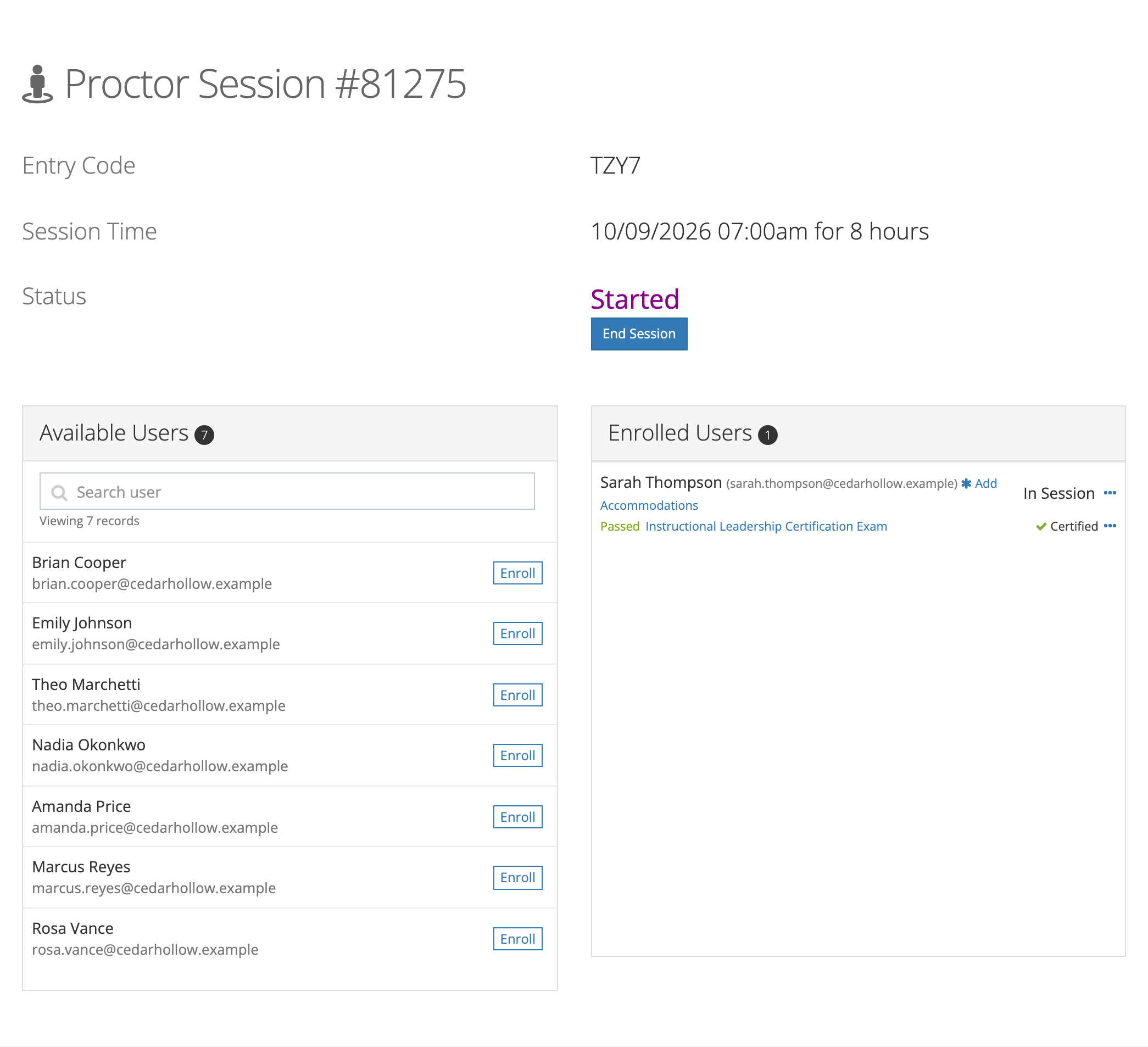
The page updates as test takers join, start, and finish, so you can leave it open during testing.
Enroll test takers
Section titled “Enroll test takers”Available Users lists staff in the schools you can see whose school is assigned proctored content. Use Search user, then select Enroll next to each person. If the panel reads “Users have not been assigned to this content.”, no school you can see has a proctored assignment.
Test takers can also join with the Entry Code. Write it on the board or send it with the testing details. They appear under Enrolled Users as they join.
Each enrolled person shows a status:
| Status | Meaning |
|---|---|
| Enrolled | On the list, not yet in the lobby |
| Waiting | In the lobby, waiting for you to start |
| In Session | The session is started and they have opened it |
| Session Complete | The session has ended |
| Session Expired | The session expired before it ended |
Under each name, every assessment they open in this session shows its own state: Started, Taking, Passed, Failed, or Incomplete (started but not finished when the session closed). Select the assessment name to open the Results for box with the score, the score needed to pass, the number of attempts, and each attempt’s score.
Select Add Accommodations next to a person’s name (it is also in the row menu, …) to record Human Scribe, Human Reader, or both. Accommodations print on the person’s certificate. The row menu also has Remove User. You can remove a person only before the session ends and before they have a certification.
Start the session
Section titled “Start the session”Start Session appears on the session’s start date, while the status is Pending, once at least one person is enrolled. Select it when the room is ready and IDs are checked. Every lobby switches to “Session is open. You may now start.”
Allow a retake
Section titled “Allow a retake”When a test taker fails, their assessment shows Failed with Allow Retake? next to it.
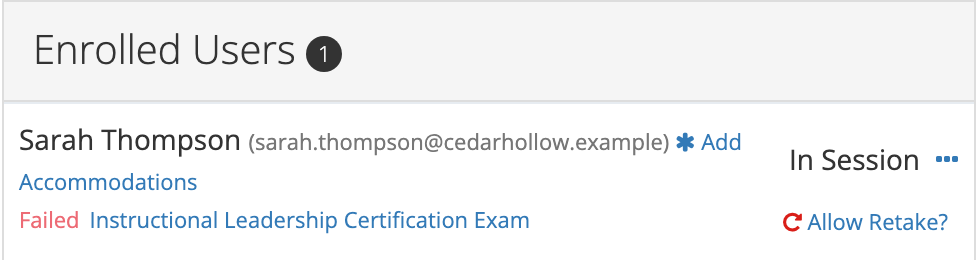
Select Allow Retake? to clear the failed attempt. The test taker can then open the assessment again in the same session. Earlier attempt scores stay in their results.
A retake is not possible in these cases, and the panel says why:
- The person passed (“A passed assessment can’t be retaken.”).
- The person has not finished (“Only a failed assessment can be retaken.”).
- The session is Complete or Expired. Enroll the person in a new session instead. When they open the assessment in the new session, it shows Failed there, and you can select Allow Retake?.
Certify results
Section titled “Certify results”If your district certifies automatically, a passing result shows Certified as soon as it is graded. Otherwise, a passing result shows Certify Results. Select it, read the statement “I, (your name), certify that (test taker) passed (assessment) with final score of (score)”, and select Certify Result. You cannot certify your own result.
The test taker receives the certificate by email. To download or resend a certificate later, use the menu next to Certified, or see Getting Started as a Proctor.
End the session
Section titled “End the session”When everyone is done, select End Session, then End Session again to confirm. The confirmation warns: “You won’t be able to make any more changes once the session is ended.”
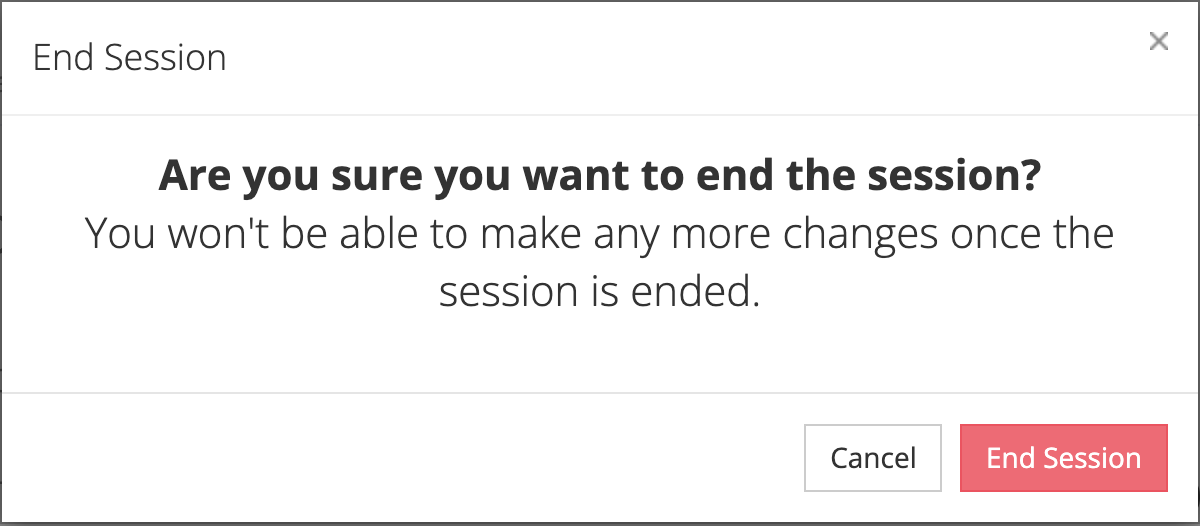
The status changes to Complete, every enrolled person changes to Session Complete, and the entry code stops working.
Related
Section titled “Related”- Getting Started as a Proctor
- Proctored Assessments (the test taker’s side)
- Assessment Reports